


What is Costa Extension?
A VS Code extension that integrates Costa’s services with built-in auth, live usage tracking, and automated setup for Claude Code, Codex and many more.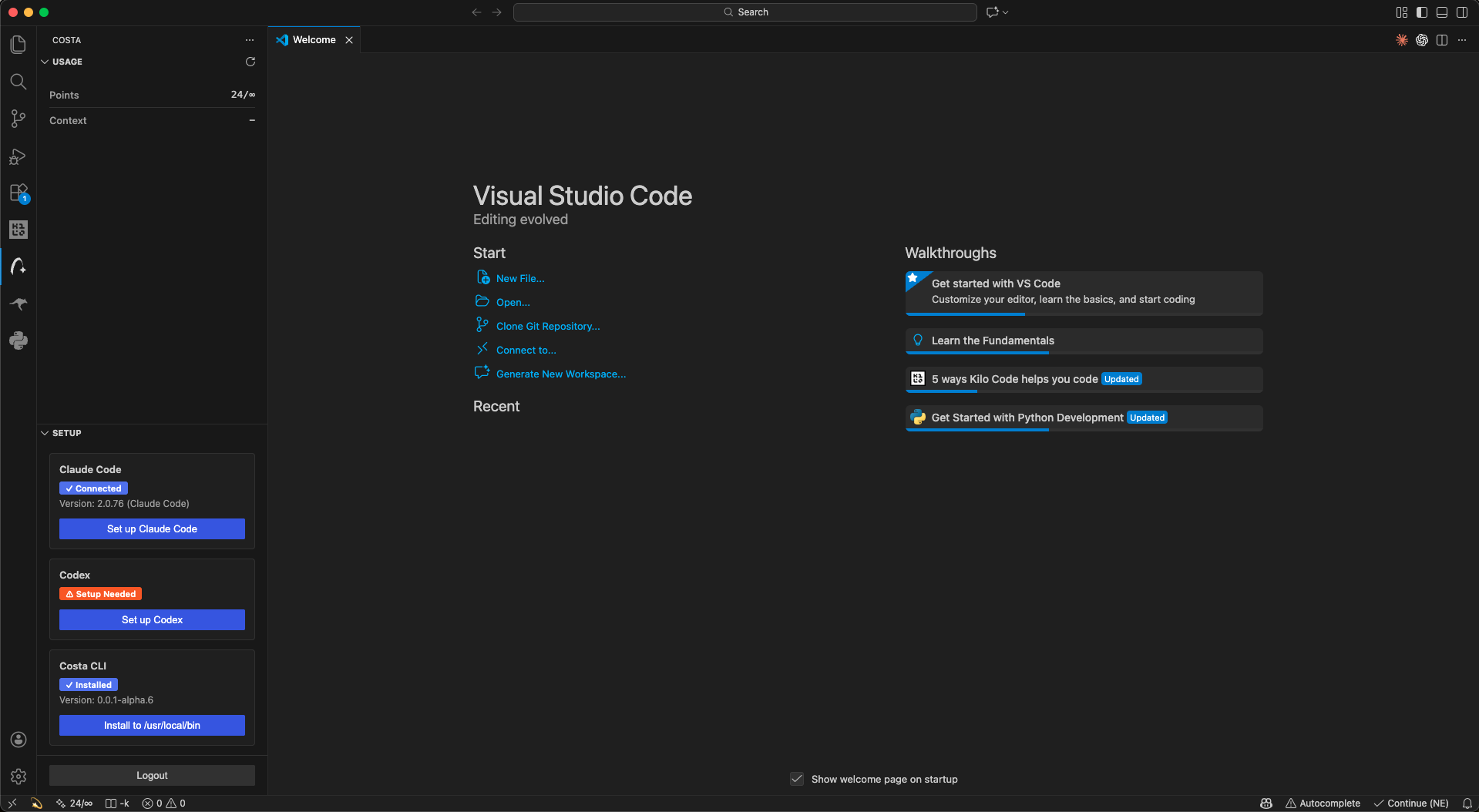
Features
-
Secure authentication
Log in and out of Costa using an OAuth flow powered by the bundled Costa CLI. -
Real-time usage tracking
Monitor points usage and context length directly from the VS Code status bar. -
One-click setup
Automatically configure Claude Code and Codex to use Costa’s API. -
Bundled Costa CLI
Includes the Costa CLI for macOS, Windows, and Linux with automatic platform detection. -
Usage dashboard
Dedicated sidebar panels for usage insights and setup management. -
System installation (macOS/Linux)
Optionally install the Costa CLI to/usr/local/binfor system-wide access.
Installation
Install the extension directly from the VS Code Marketplace:- Open the Extensions view (
Cmd+Shift+Xon macOS,Ctrl+Shift+Xon Windows/Linux) - Search for Costa Code
- Click Install
Authentication
Once installed, authenticate with Costa:- Open the Command Palette
- Run Costa Code: Login
- Complete OAuth authentication in your browser
Status Bar
When logged in, Costa Code displays live usage indicators in the VS Code status bar:-
Costa status (
💫)
Click to open the Costa panel or log in if logged out. -
Points usage
Color-coded usage indicator:- Green: 0–25%
- Yellow: 25–50%
- Red: 75%+
Sidebar Panels
Costa Code adds a dedicated activity bar section with two panels.Troubleshooting
-
“Costa CLI not found”
Reinstall the extension or installcostaon your PATH and restart VS Code. -
Status bar shows
-
Log in first and wait for usage data to load. -
macOS system install prompts
Installing to/usr/local/binrequires administrator permissions.