> ## Documentation Index
> Fetch the complete documentation index at: https://docs.costa.app/llms.txt
> Use this file to discover all available pages before exploring further.
# VS Code Extension
> Use Costa directly inside Visual Studio Code with real-time usage tracking and one-click setup.
### What is Costa Extension?
A VS Code extension that integrates Costa’s services with built-in auth, live usage tracking, and automated setup for Claude Code, Codex and many more.
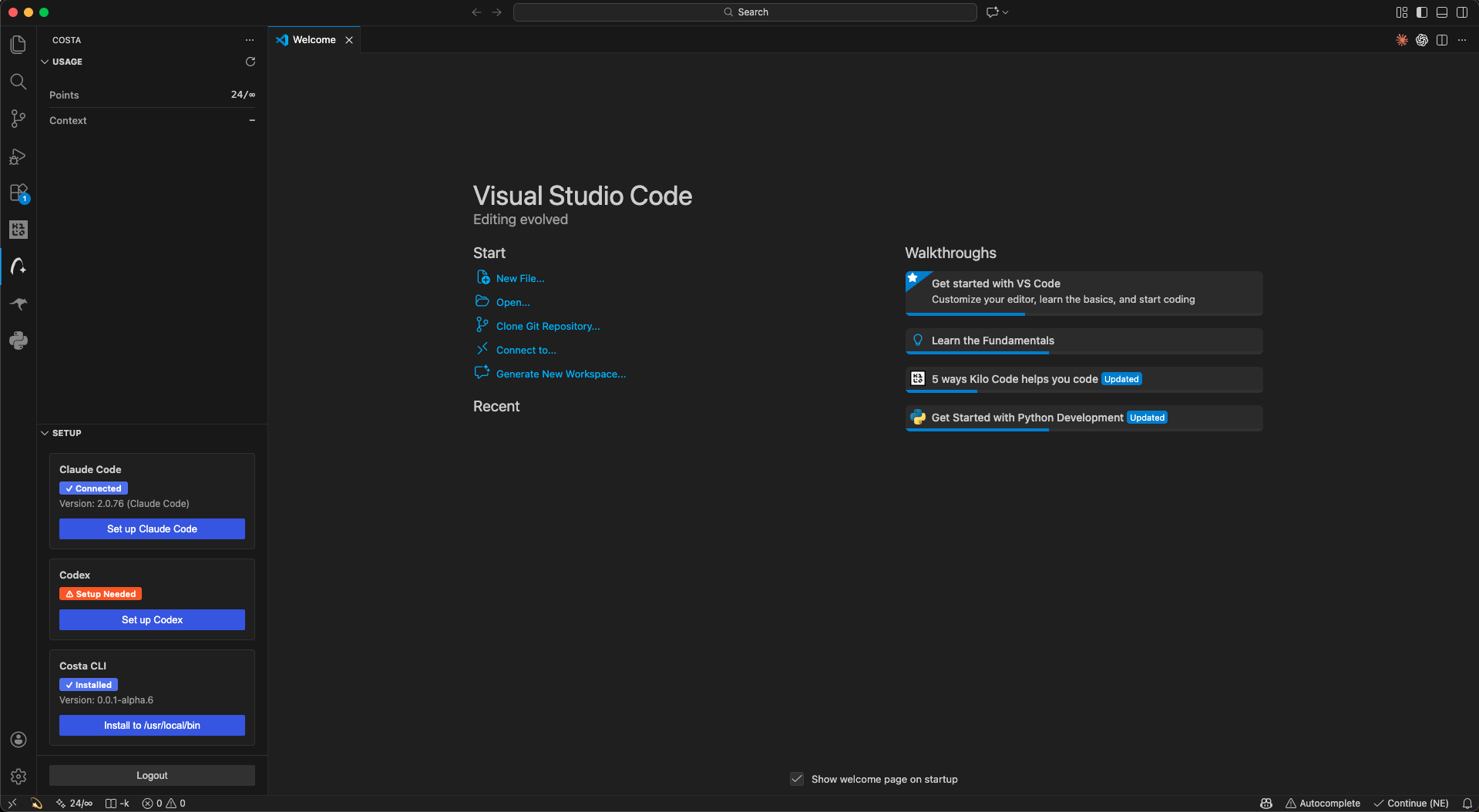 Codex running in the command line interface
[View on VS Code Marketplace](https://marketplace.visualstudio.com/items?itemName=Costa.costa-code)
***
### Features
* **Secure authentication**\
Log in and out of Costa using an OAuth flow powered by the bundled Costa CLI.
* **Real-time usage tracking**\
Monitor points usage and context length directly from the VS Code status bar.
* **One-click setup**\
Automatically configure Claude Code and Codex to use Costa’s API.
* **Bundled Costa CLI**\
Includes the Costa CLI for macOS, Windows, and Linux with automatic platform detection.
* **Usage dashboard**\
Dedicated sidebar panels for usage insights and setup management.
* **System installation (macOS/Linux)**\
Optionally install the Costa CLI to `/usr/local/bin` for system-wide access.
***
### Installation
Install the extension directly from the VS Code Marketplace:
* Open the Extensions view (`Cmd+Shift+X` on macOS, `Ctrl+Shift+X` on Windows/Linux)
* Search for **Costa**
* Click **Install**
***
### Authentication
Once installed, authenticate with Costa:
1. Open the Command Palette
2. Run **Costa: Login**
3. Complete OAuth authentication in your browser
After logging in, usage data will appear automatically in the status bar.
***
### Status Bar
When logged in, Costa displays live usage indicators in the VS Code status bar:
* **Costa status (`💫`)**\
Click to open the Costa panel or log in if logged out.
* **Points usage**\
Color-coded usage indicator:
* Green: 0–25%
* Yellow: 25–50%
* Red: 75%+
***
## Sidebar Panels
Costa adds a dedicated activity bar section with two panels.
***
## Troubleshooting
* **“Costa CLI not found”**\
Reinstall the extension or install `costa` on your PATH and restart VS Code.
* **Status bar shows `-`**\
Log in first and wait for usage data to load.
* **macOS system install prompts**\
Installing to `/usr/local/bin` requires administrator permissions.
Codex running in the command line interface
[View on VS Code Marketplace](https://marketplace.visualstudio.com/items?itemName=Costa.costa-code)
***
### Features
* **Secure authentication**\
Log in and out of Costa using an OAuth flow powered by the bundled Costa CLI.
* **Real-time usage tracking**\
Monitor points usage and context length directly from the VS Code status bar.
* **One-click setup**\
Automatically configure Claude Code and Codex to use Costa’s API.
* **Bundled Costa CLI**\
Includes the Costa CLI for macOS, Windows, and Linux with automatic platform detection.
* **Usage dashboard**\
Dedicated sidebar panels for usage insights and setup management.
* **System installation (macOS/Linux)**\
Optionally install the Costa CLI to `/usr/local/bin` for system-wide access.
***
### Installation
Install the extension directly from the VS Code Marketplace:
* Open the Extensions view (`Cmd+Shift+X` on macOS, `Ctrl+Shift+X` on Windows/Linux)
* Search for **Costa**
* Click **Install**
***
### Authentication
Once installed, authenticate with Costa:
1. Open the Command Palette
2. Run **Costa: Login**
3. Complete OAuth authentication in your browser
After logging in, usage data will appear automatically in the status bar.
***
### Status Bar
When logged in, Costa displays live usage indicators in the VS Code status bar:
* **Costa status (`💫`)**\
Click to open the Costa panel or log in if logged out.
* **Points usage**\
Color-coded usage indicator:
* Green: 0–25%
* Yellow: 25–50%
* Red: 75%+
***
## Sidebar Panels
Costa adds a dedicated activity bar section with two panels.
***
## Troubleshooting
* **“Costa CLI not found”**\
Reinstall the extension or install `costa` on your PATH and restart VS Code.
* **Status bar shows `-`**\
Log in first and wait for usage data to load.
* **macOS system install prompts**\
Installing to `/usr/local/bin` requires administrator permissions.