> ## Documentation Index
> Fetch the complete documentation index at: https://docs.costa.app/llms.txt
> Use this file to discover all available pages before exploring further.
# Codex
> Connect Costa to Codex CLI for secure AI development
### Quick Setup
Before you can use Codex with Costa, install the Codex CLI or desktop agent from the official Codex downloads page. see the [Codex CLI Quickstart Guide](https://developers.openai.com/codex/cli/).
Codex works seamlessly with Costa through a dedicated Costa profile. Just create a config.toml file (or use environment variables) with the Costa credentials shown below.
### Step 1: Install Codex
Grab the Codex CLI with npm. Use the tabs above if you prefer a different package manager.
```bash theme={null}
npm i -g @openai/codex
```
### Step 2: Integrate with Costa
```bash theme={null}
costa setup codex
```
How to install the CLI? [ click here](/cli)
Add the Costa profile to `~/.codex/config.toml`:
```toml ~/.codex/config.toml theme={null}
model_provider="costa"
[model_providers.costa]
name = "Costa Security AI"
base_url = "https://ai.costa.app/api/v1"
requires_openai_auth = true
http_headers = { "costa-api-key" = "YOUR_COSTA_API_KEY" }
```
Replace `YOUR_COSTA_API_KEY` with your actual Costa API key from [https://ai.costa.app/code/settings](https://ai.costa.app/code/settings).
### Start Coding
That's it! Launch Codex with your usual command:
```bash theme={null}
codex
```
Your Codex workspace now routes through Costa's secure inference edge, unlocking the following by default:
* **Costa Auto Router** intelligent model selection
* **Zero-trust security** scanning all interactions
* **Enterprise compliance** and audit logging
* **Performance analytics** to track your coding efficiency and model performance
#### Codex CLI
Codex works seamlessly with Costa in the CLI...
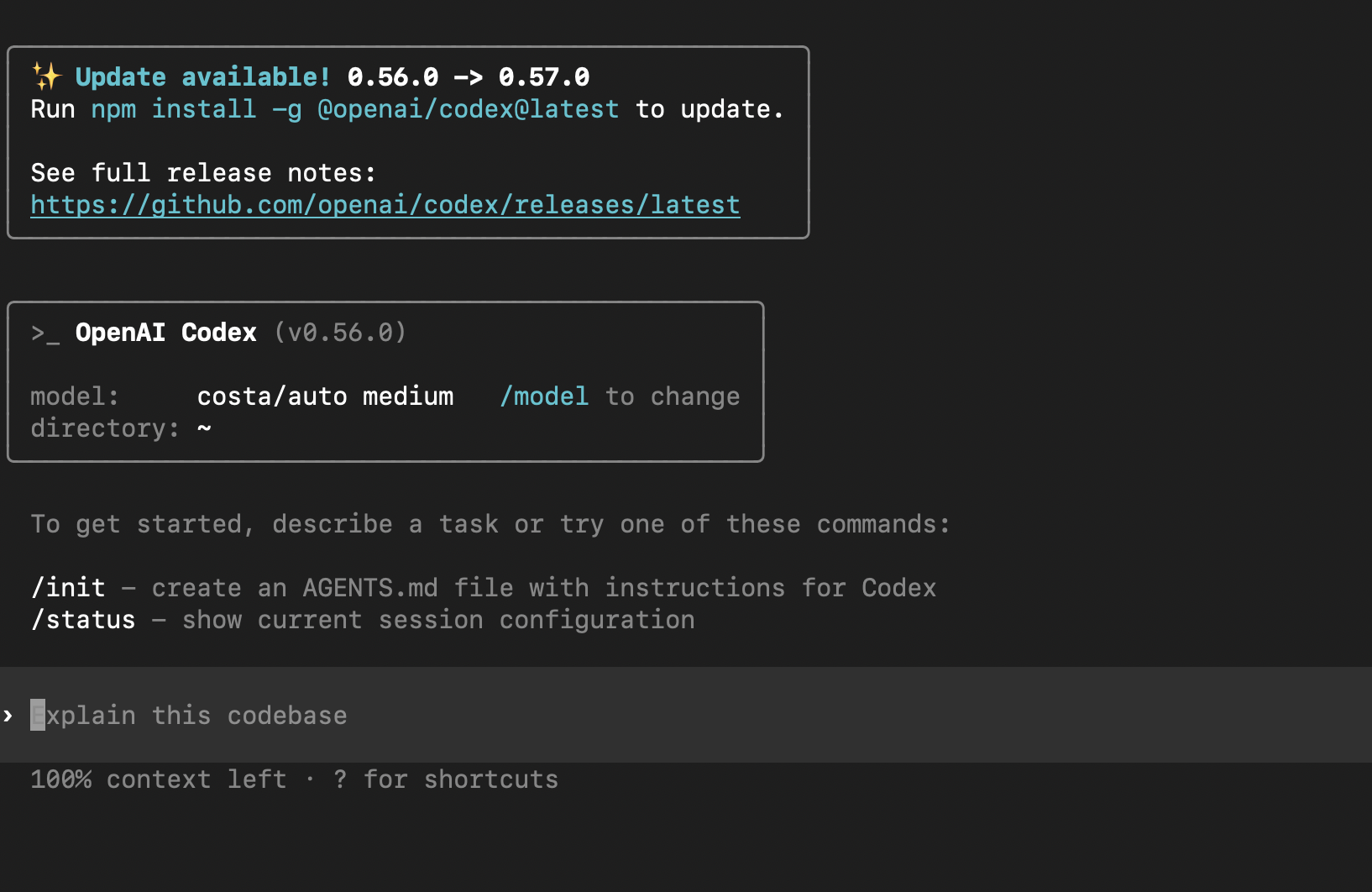 Codex running in the command line interface
#### Codex VS Code Extension
... and also in Claude's VS Code extension.
Codex running in the command line interface
#### Codex VS Code Extension
... and also in Claude's VS Code extension.
 Codex integrated in Visual Studio Code
### Unlock the power of Codex CLI with any model
You can use any model with Codex CLI, including `ray-codex`, `gpt-5`, and others.
If you love Codex CLI, but have ever wondered whether it's the IDE or models that give you that extra edge... with Costa you can break free from your IDE.
Use any model you want and compare cross-model performance with Costa's [ Analytics](/insights) over time and find the combinations that are best for you.
For a full list of available models, visit [https://ai.costa.app/code/models](https://ai.costa.app/code/models).
Codex integrated in Visual Studio Code
### Unlock the power of Codex CLI with any model
You can use any model with Codex CLI, including `ray-codex`, `gpt-5`, and others.
If you love Codex CLI, but have ever wondered whether it's the IDE or models that give you that extra edge... with Costa you can break free from your IDE.
Use any model you want and compare cross-model performance with Costa's [ Analytics](/insights) over time and find the combinations that are best for you.
For a full list of available models, visit [https://ai.costa.app/code/models](https://ai.costa.app/code/models).